
Tour of the macOS app
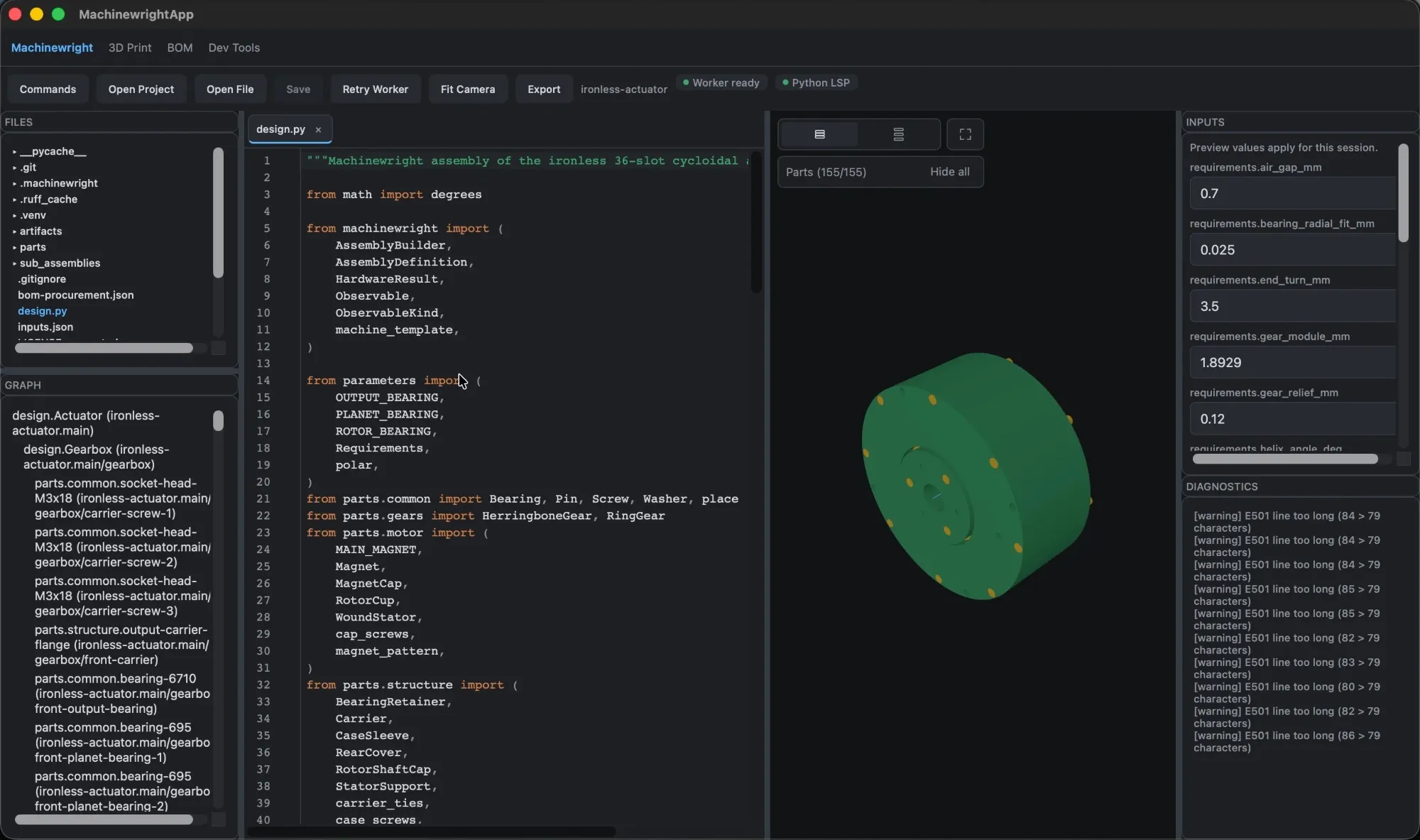
The Machinewright app opens a project folder, evaluates it through the project’s Python worker, and shows the result live. These screenshots use the ironless-actuator sample project.
The workspace
Section titled “The workspace”- Files (top left) browses the project. Select
design.pyto edit it. - Graph (bottom left) lists the resolved assemblies and parts, such as
design.Gearboxand its fasteners and bearings. Selecting a node highlights it in the viewport and links to its source. - Editor (center) is a Python editor with syntax highlighting, folding, search and Command-S to save. The project-local language server provides completions (Control-Space), hover documentation, Go to Definition (F12) and inline diagnostics.
- Viewport (center right) is the 3D view. Toggle between Assembled and Exploded views and use Fit Camera to frame the model.
- Inputs (top right) exposes the active template’s fields. Change a value and the preview re-evaluates.
- Diagnostics (bottom right) shows warnings and errors from resolution and the language server.
The editor evaluates unsaved changes and keeps the last valid snapshot visible if a newer evaluation fails.
Assembled and exploded views
Section titled “Assembled and exploded views”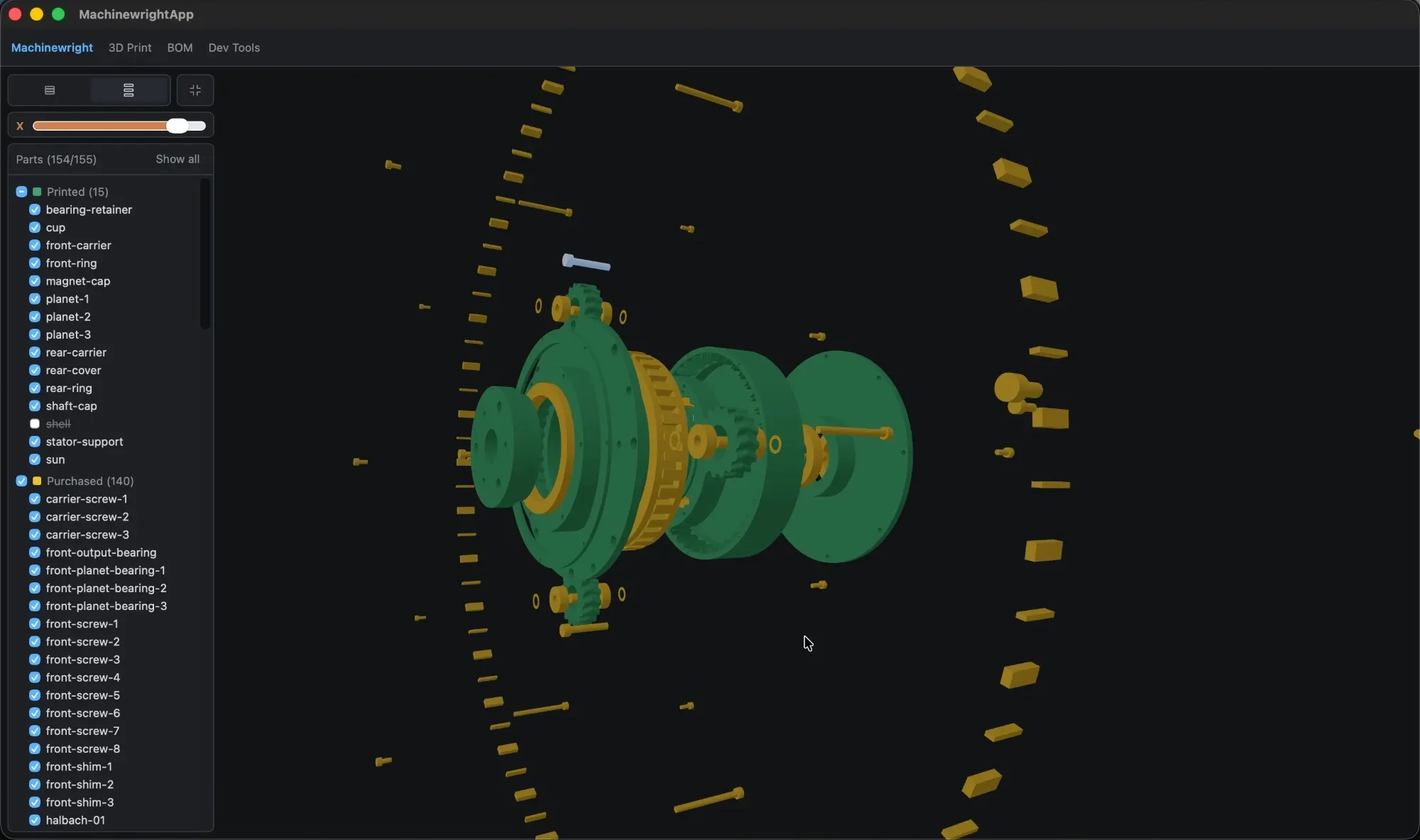
The exploded view separates parts so you can check fit and assembly order. In the maximized viewport, the parts list groups parts into Printed and Purchased; untick a part or group to hide it, and click Show all to restore everything.
Other tabs
Section titled “Other tabs”-
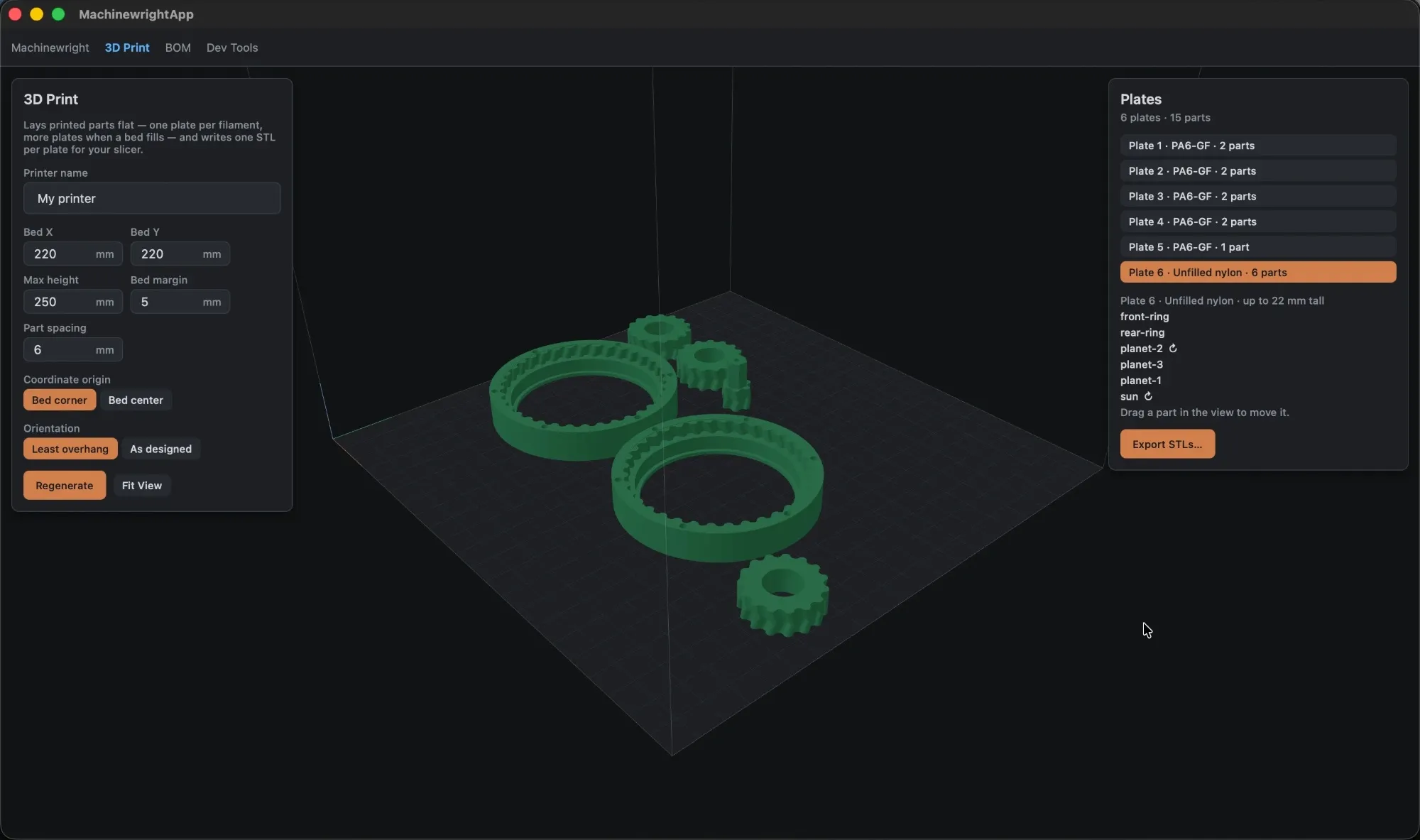
3D Print is a full-window view of your printer’s bed. Configure the printer, Generate Plates, and Export STLs… for your slicer. See 3D printing plates.
-
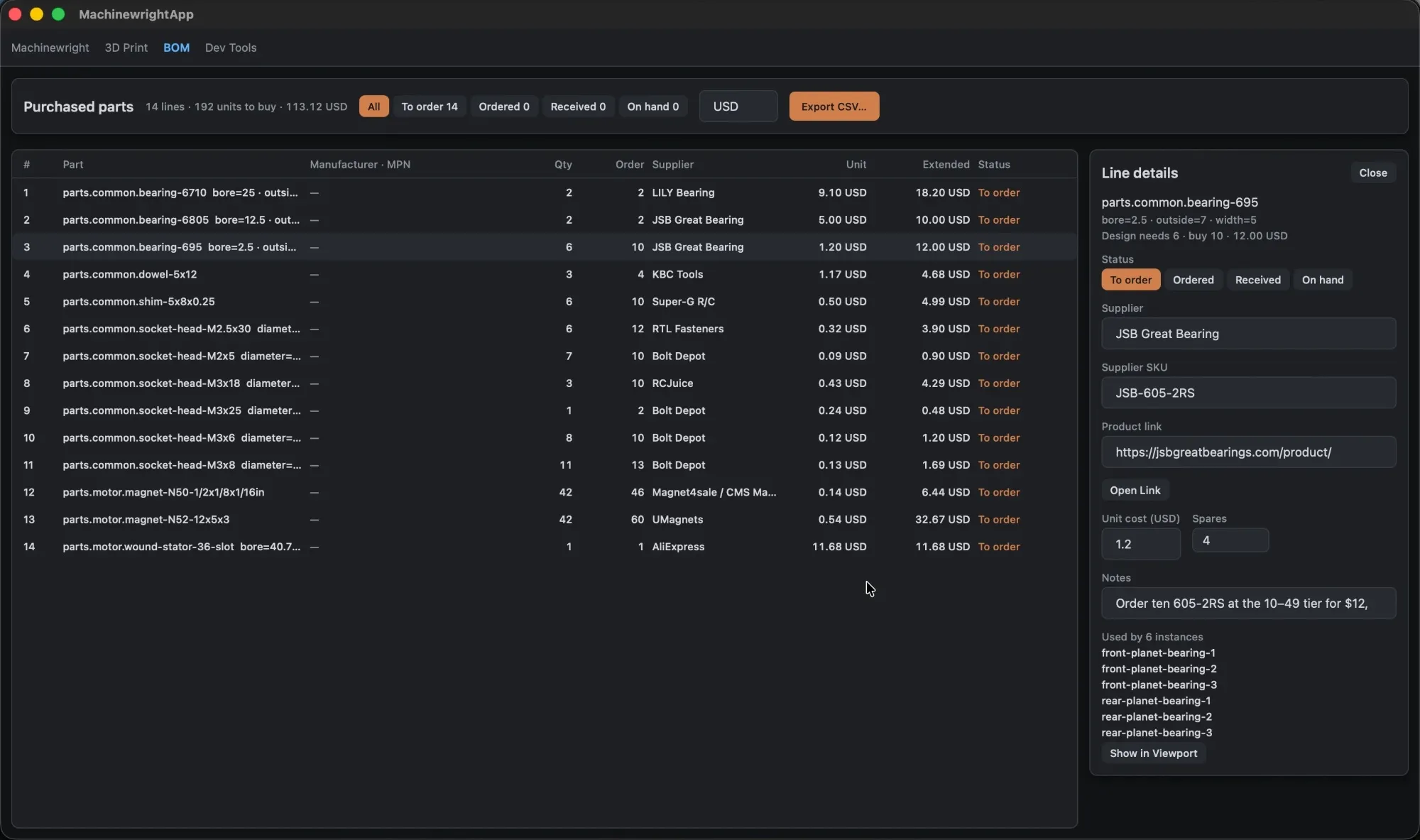
BOM lists purchased parts with supplier, SKU, cost and order status. See BOM and procurement.
-
Export (
Cmd+Shift+E) saves STEP or STL for the whole assembly or for selected parts. See Exporting artifacts. -
Commands opens the command palette.