
3D printing plates
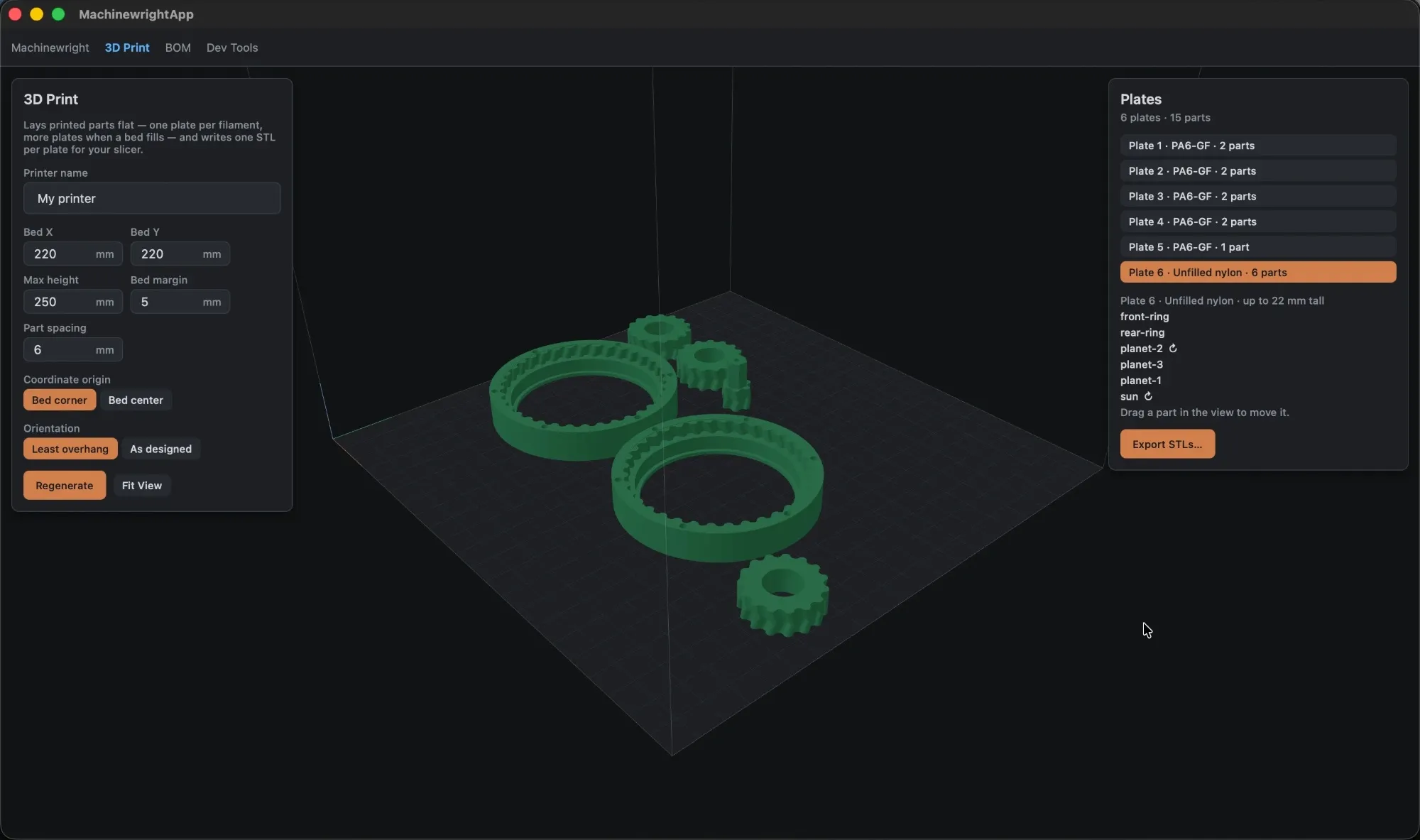
The 3D Print tab is a full-window view of your printer’s bed. Printer settings and Generate Plates are on the left, the plate list on the right. A progress bar follows orienting, packing and writing, and each plate appears the moment its STL is written. Export STLs… copies the set to a folder you choose.
Machinewright does not slice or generate G-code.
Planning rules
Section titled “Planning rules”- Only parts whose material process is
PRINTEDare planned. - Plates never mix materials, because different filaments cannot share a run. A design using two nylons produces separate plates for each.
- Each part is laid on its least-overhanging axis-aligned face. Taller orientations pay a penalty, so a marginal overhang saving never produces a very tall print. Choose As designed to keep authored orientations.
- Parts are shelf-packed using the configured spacing and bed margin, rotating 90 degrees about Z when that helps, and spill onto extra plates when a bed fills.
- Parts too tall or too large for the printer are listed as skipped, never silently dropped.
Output
Section titled “Output”<name>-plate-NN-<material>.stl per plate, plus <name>-plan.json with positions, orientations and skipped parts. Coordinates put the bed’s front-left corner (or its center, if configured) at the origin.
Printer and export settings are saved per project in .machinewright/export-settings.json. Generated plates live in .machinewright/print/ until you export them.