
BOM and procurement
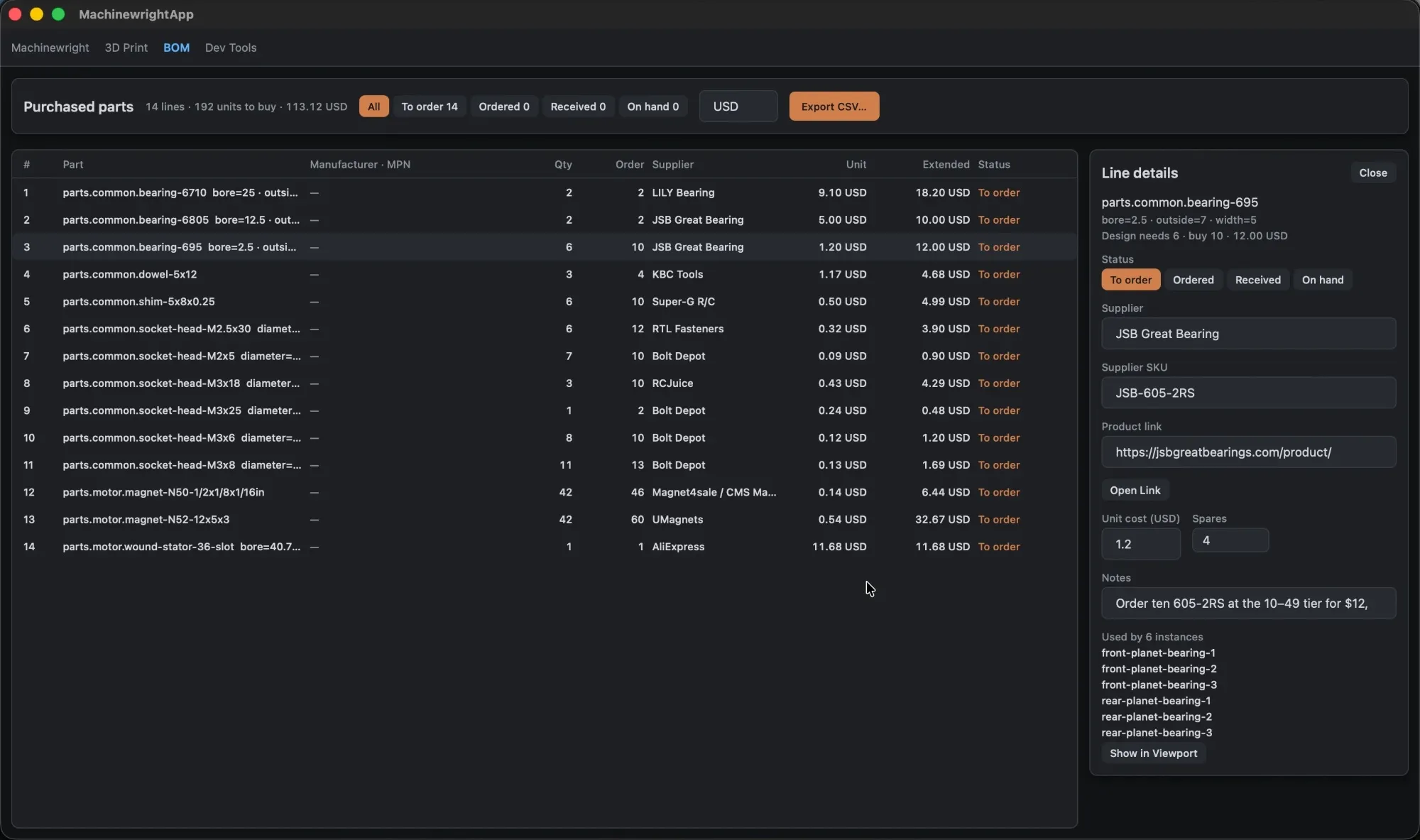
The BOM tab shows the design’s purchased parts (material process PURCHASED). The lines are Machinewright’s own BOM, the bom.json every evaluation writes, so grouping, quantities and manufacturer identity match machinewright export bom exactly.
For each line you can record supplier, SKU, product link, unit cost, spares, order status (to order, ordered, received, on hand) and notes. The tab totals units to buy and cost, and exports a CSV. Show in Viewport selects a line’s instances in the 3D view.
The procurement file
Section titled “The procurement file”Procurement data is saved in bom-procurement.json in the project root, so it can be committed with the design. Opening the BOM tab prefills one record per purchased part, with a needs list naming what is still missing. A record looks like:
{ "part": "bearing-6805", "description": "bore=25 · od=37", "needs": ["supplier", "sku", "unit_cost"], "status": "to_order", "quantity": 2, "supplier": "", "sku": "", "url": "", "unit_cost": null, "spares": 0, "instances": ["front-bearing-1", "front-bearing-2"], "in_design": true, "line_id": "sha256:…"}Fields such as part, quantity and instances refresh from the design; the rest is yours. Records are matched by line_id, a digest of the part definition, revision and parameters, so sourcing survives unrelated edits. A part that leaves the design is kept with in_design: false in case it returns.
From the command line
Section titled “From the command line”machinewright bom sync # prefill bom-procurement.jsonmachinewright bom list --unsourced --json # lines still missing a supplier or pricemachinewright bom set 4702b31a22e0 --supplier McMaster --sku 91290A115 \ --unit-cost 0.12 --spares 2 --status orderedmachinewright bom export parts.csv # BOM + sourcing as CSVCommands read the newest .machinewright/output/assembly-*.bom.json (or --bom), accept a unique prefix of a line id, and write the file atomically. The app reads the file when the BOM tab opens, so reopen the tab after editing it externally.